Date Input Widget
Gather a date input. Use this widget to gather important date values such as contract deadlines and renewal dates. Make the field optional or required, including custom field validation.
Title
Set the title of the widget. Include a descriptive title to help users understand the specific content of the widget.
Wrap title text
Select whether to wrap title text that extends beyond the available display width. When not selected, long titles are truncated with an ellipsis.

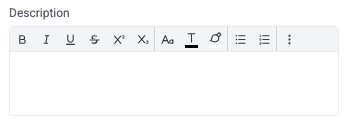
Description
Add a description for the widget. This description displays below the widget title.
Show description as a tool tip
Select whether to display the widget description as a tool tip, hiding it by default.
When displayed as a tool tip, any rich text formatting in the description is removed.

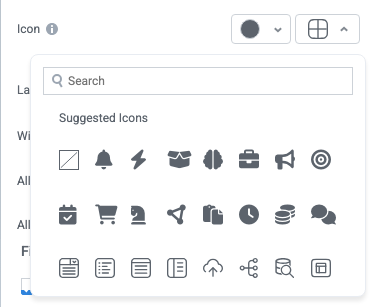
Icon
Change the widget icon and icon color—or remove the icon. Widgets always include a default icon.
Select the crossed-out icon option,  , to remove the icon.
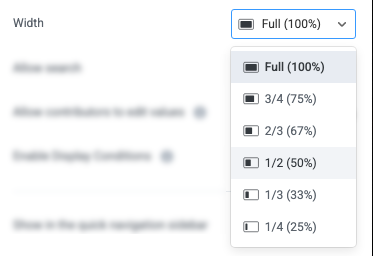
Width
Set the display width of the widget.
The width settings of neighboring widgets determine the resulting display on the interface. For example, two neighboring widgets set to 50% width display side by side. Similarly, if one widget is set to 1/3 and the following widget is set to 2/3, the widgets will display side by side.
We recommend experimenting with widget width settings and widget placement to optimize the interface display for the screen size you're designing for. That is, if you're designing an interface for a large screen (say, a request tracking interface), you can use small widget widths and include multiple widgets together. However, if designing for mobile, leaving widgets at 100% widths is generally best.
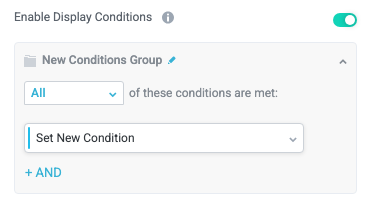
Enable Display Conditions
Select whether to dynamically display the widget based on custom conditions. When enabled, a conditions group displays; when the specified conditions are met, the widget displays.
For example, you can set a condition to display an input-type widget only if a user enters a specific value, prompting the user to provide additional information.
For more information about configuring condition groups, see Conditions.
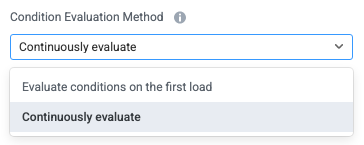
Condition Evaluation Method
Set how display conditions are evaluated:
Evaluate conditions on the first load - Evaluate conditions only when the page first loads. This option does not dynamically show or hide relevant widgets when a user makes a selection; refreshing the page is required.
Continuously evaluate (default) - Continuously evaluate conditions as the user views and interacts with the interface. Use this option to enable the interface to dynamically show or hide relevant widgets based on user input.
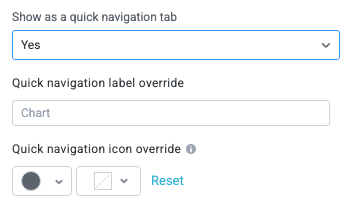
Show as a quick navigation tab
Select whether to display the widget as a quick navigation tab. When this option is set to Yes, this widget and all those below it will display on a single tab until the next widget that's configured to display as the quick navigation tab. Additionally, you can set the quick navigation menu label override and edit the label icon.
Show as disabled
Select whether the widget displays as disabled.

Input
Configure options for the field input, including where to store the input, whether the input is required, and field validation.
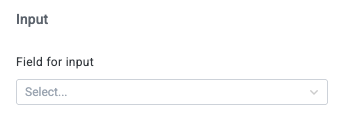
Field for input
Select the field where the input is stored. The available options provided in the dropdown depend on the input type (for example, you can only store text inputs in text-type fields.)
Display options as a list
Select whether to display options as a list (supporting up to 20 options).

Placeholder label
Enter an optional placeholder label that displays when the field is empty. This placeholder label is helpful for providing additional context for users or sample inputs.
Is required?
Select whether the field is required to submit the interface.

If the field is marked as required, the following options display:
Required Message
Provide optional text that replaces the default text when a value is missing.

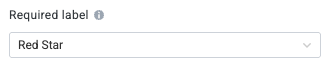
Required label
Set the label or indicator that displays for the required field.
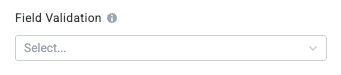
Field Validation
Configure field validation that checks for specified value types:
Valid Email - The input must be a valid email address.
Valid URL - The input must be a valid URL.
Valid Phone Number - The input must be a valid phone number.
Custom Validation - Set custom field validation using a regular expression. If you select Custom Validation, the Regular Expression field displays; enter your expression here.
Field Validation Message
Set a message that displays when field validation fails.