Status Widget
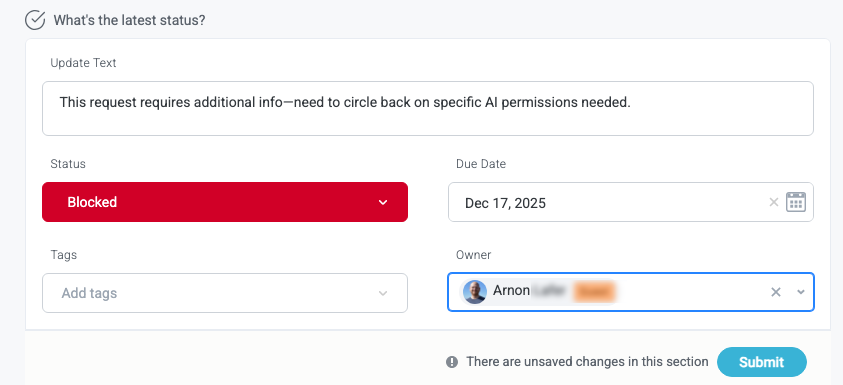
Add the ability to view and update item statuses and other relevant fields to your interface, pulling statuses directly from the module workflow in real time. The Status widget both displays the current status of an item and enables users to update that status and other metadata fields.
For example, you might include the basic field Status, as well as Due Date and Update Text, where users can add a note for their status change. When done, users select the provided Submit button to save their changes.
To provide a progress bar experience for intake processes, for example, see the Status Progress Bar Widget widget.
Title
Set the title of the widget. Include a descriptive title to help users understand the specific content of the widget.
Wrap title text
Select whether to wrap title text that extends beyond the available display width. When not selected, long titles are truncated with an ellipsis.

Description
Add a description for the widget. This description displays below the widget title.
Show description as a tool tip
Select whether to display the widget description as a tool tip, hiding it by default.
When displayed as a tool tip, any rich text formatting in the description is removed.

Icon
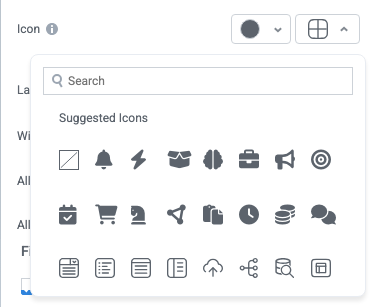
Change the widget icon and icon color—or remove the icon. Widgets always include a default icon.
Select the crossed-out icon option,  , to remove the icon.
Layout
Set the layout style of the widget:
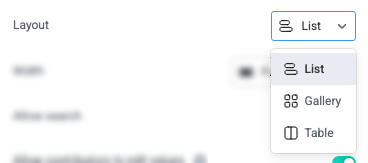
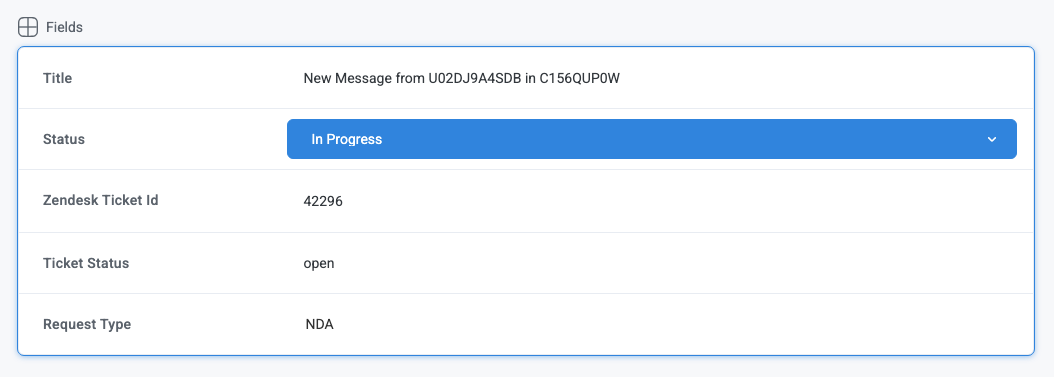
List - Display values as a list with multiple columns, depending on the widget display width.
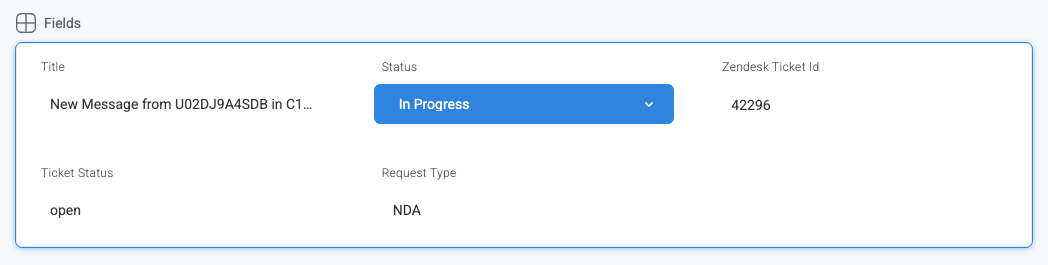
Gallery - Display values in a gallery view. Use this option for interfaces intended for use on small screens, such as mobile phones or tablets.
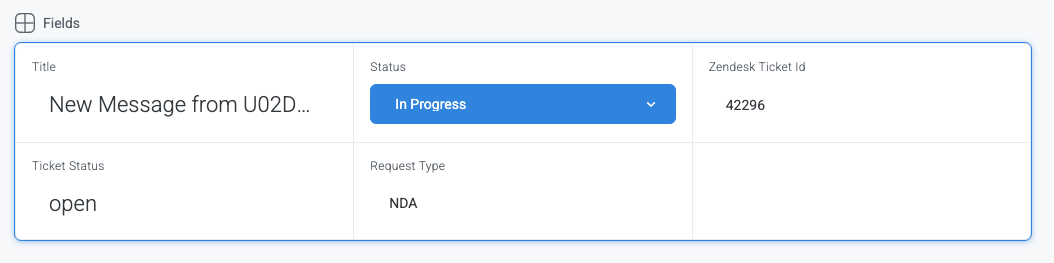
Table - Display values in a two-column table format.
Width
Set the display width of the widget.
The width settings of neighboring widgets determine the resulting display on the interface. For example, two neighboring widgets set to 50% width display side by side. Similarly, if one widget is set to 1/3 and the following widget is set to 2/3, the widgets will display side by side.
We recommend experimenting with widget width settings and widget placement to optimize the interface display for the screen size you're designing for. That is, if you're designing an interface for a large screen (say, a request tracking interface), you can use small widget widths and include multiple widgets together. However, if designing for mobile, leaving widgets at 100% widths is generally best.
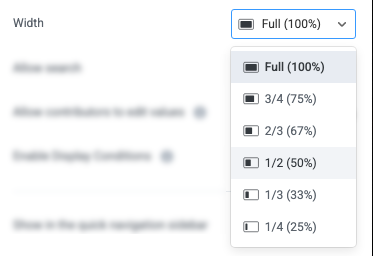
Enable Display Conditions
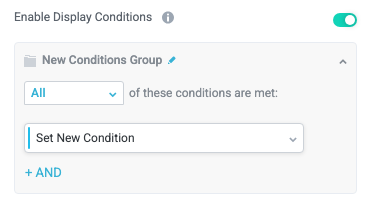
Select whether to dynamically display the widget based on custom conditions. When enabled, a conditions group displays; when the specified conditions are met, the widget displays.
For example, you can set a condition to display an input-type widget only if a user enters a specific value, prompting the user to provide additional information.
For more information about configuring condition groups, see Conditions.
Condition Evaluation Method
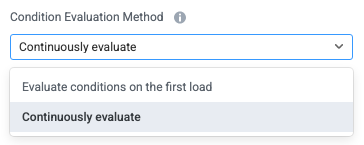
Set how display conditions are evaluated:
Evaluate conditions on the first load - Evaluate conditions only when the page first loads. This option does not dynamically show or hide relevant widgets when a user makes a selection; refreshing the page is required.
Continuously evaluate (default) - Continuously evaluate conditions as the user views and interacts with the interface. Use this option to enable the interface to dynamically show or hide relevant widgets based on user input.
Show as a quick navigation tab
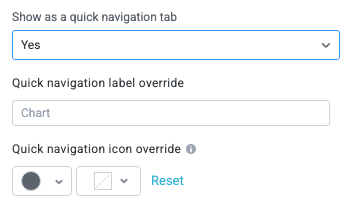
Select whether to display the widget as a quick navigation tab. When this option is set to Yes, this widget and all those below it will display on a single tab until the next widget that's configured to display as the quick navigation tab. Additionally, you can set the quick navigation menu label override and edit the label icon.
Fill available height when it's the only widget
Select whether the widget expands to fill all available height when this widget is the only widget on the interface.

Fields
Select the module fields to display in the widget. These are additional fields that will display as editable in the widget, enabling users to update key values.
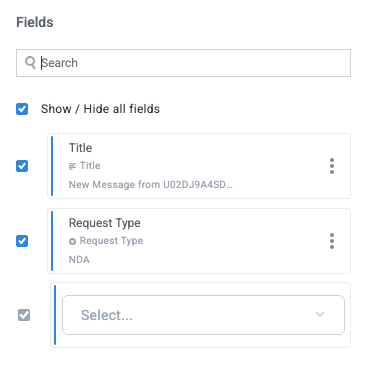
To edit the field label, enable field colors, remove the field, and access additional options for each field, select the three dots icon,  . Additionally, you can hover over the field tile and select the up and down arrows to rearrange the fields on the widget.