Delete a Solution
Over time, your board may end up with solutions you no longer need, such as test builds, pilots that never went live, or old processes your team has replaced. Deleting these solutions keeps your board organized and makes it easier for makers and admins to find the solutions they actually use.
Deleting a solution removes the solution and all of its modules from your board. Before you delete a solution, make sure no active processes, business reports, or teams depend on it.
Deleting a solution can only be undone by contacting Tonkean Support. If you only want to stop a solution from running, consider turning off its modules instead.
Before You Delete a Solution
Review the following before deleting a solution:
Permissions - Only users who are both a maker of the solution and a board admin can delete it. If the Delete Solution option is unavailable, ask a board admin to add you as a maker, or ask an existing maker who is a board admin to delete the solution for you.
Running modules - When you delete a solution, Tonkean immediately turns off all of its modules in both the Build and Production environments. Any in-progress workflows in those modules stop running.
Dependent processes - Check whether other solutions, workspace apps, or business reports rely on the modules in this solution. Those dependencies stop working once the solution is deleted.
Solution versions - If you might need the solution's configuration later, export its version files first. To do this, select the settings icon in the upper right, then select Export versions files.
Delete a Solution
To delete a solution, follow the steps below:
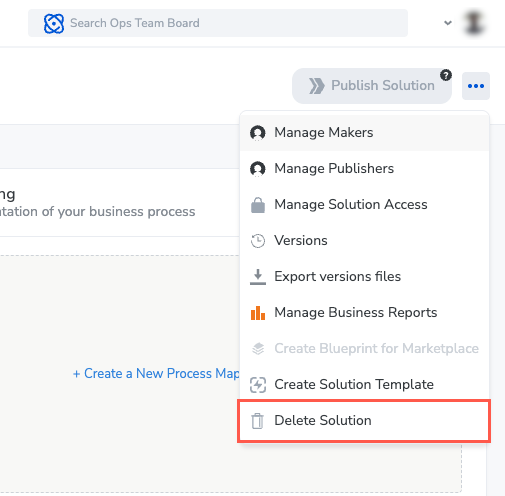
Navigate to the solution you want to delete, then select the settings icon,
 , in the upper right. The solution settings menu displays.
Select Delete Solution. The Delete {Solution} solution? window displays.
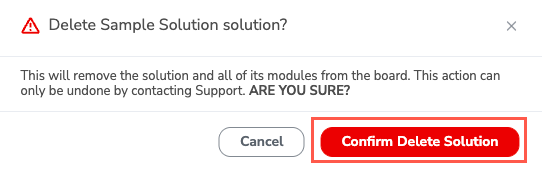
Review the warning, then select Confirm Delete Solution. The solution is deleted, a confirmation message displays, and you return to the Solutions Studio.
Restore a Deleted Solution
Deleted solutions aren't permanently removed right away. Tonkean keeps a deleted solution for 30 days before permanently removing it from your board.
To restore a deleted solution during this period, contact Tonkean Support and give them the board name and the name of the solution you deleted. After the 30-day period ends, the solution can't be restored.