UI-Only Formulas
UI-only formulas create dynamic text for interface widgets and communications, such as localized copy, helper text, or sentences that include field values. For example, you can use a UI-only formula to display a message such as "Your request for $5,000 was submitted on March 3 and is awaiting approval."
UI-only formulas are calculated each time the widget loads and aren't saved to the item. UI-only formulas can be used in actions and are localized, but because their values exist only in the interface, they can't be used in conditions or referenced by workflow formulas.
For values that need to behave like regular fields in conditions, dependencies, automations, filtering, sorting, reporting, or reuse by other fields, use Workflow Formulas instead.
Create a UI-Only Formula
To create a UI-only formula, follow the steps below:
Select the main nav icon,
 , in the top left corner and select Solutions Studio. The Solutions Studio screen displays.
Select the module you want to create the UI-only formula in. The module builder screen displays.
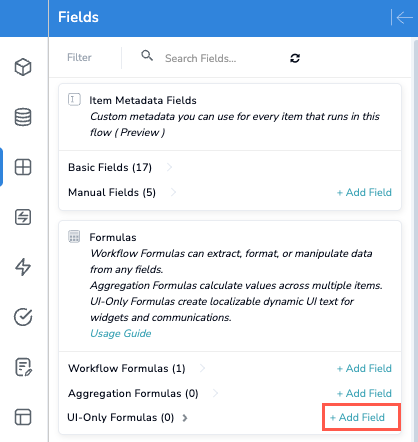
Select the Fields button on the module builder toolbar. The Fields panel displays.
In the Formulas section, beside UI-Only Formulas, select + Add Field. The Create UI-Only Formula window displays.
You can only add and edit fields in the Build environment. In Production, select View beside a field to see its configuration.
Enter a Name for the UI-only formula.
If relevant, enter a Description of what the UI-only formula displays and where it's used.
In the Expression field, enter the text to display. To include dynamic values, select the insert field button,
 , to insert fields, formulas, or other UI-only formulas into the text.
For example, to display a request summary, enter "Your request for ", insert the Amount field, enter " was submitted on ", then insert the Created Date field.
Select Create. The UI-only formula is added to the UI-Only Formulas section in the Fields panel. Expand the section to see it.
Create is available only after you enter a name and an expression.
Display UI-Only Formulas in Widgets
After you create a UI-only formula, you can add it to interface widgets that display module fields, such as the Fields Widget and the Module Items Widget. Select the UI-only formula from the list of fields in the widget's configuration, just as you would any other field.
The UI-only formula is calculated for each item when the widget loads, so the displayed text always reflects the item's current field values. UI-only formulas are read-only and can't be edited by users in the widget.
Localize UI-Only Formulas
When you create a solution translation version, the text in each UI-only formula's expression is added to the solution's translation resource file, along with other interface text. After the text is translated, UI-only formulas display in each user's selected language. For more information, see Create a Solution Translation Version.
Manage UI-Only Formulas
To open a UI-only formula's settings, select Edit beside the field in the Fields panel. The Edit UI-Only Formula window displays. When finished making changes, select Save. In Production, select View instead.
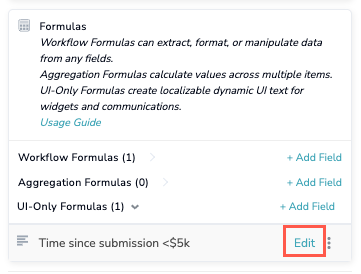
Select the ellipsis menu beside a UI-only formula to access the following options:
Delete - Deletes the UI-only formula. This option is available only in the Build environment.
Filter Dependent Fields - Filters the Fields panel to show fields that use this UI-only formula.
Filter Dependent Triggers - Displays the module's triggers, filtered to show the triggers that use this UI-only formula.
Duplicate Field - Creates a copy of the UI-only formula. This option is available only in the Build environment.