Aggregation Formulas
Aggregation formulas combine values from multiple data source records into a single field. For each item in the module, Tonkean finds the matching records in a connected data source, filters them based on the conditions you set, and calculates a single result, such as a count, a sum, an average, or a comma-separated list of values.
For example, you can use an aggregation formula to count the Jira issues with a status of "Blocked" that are linked to a project, sum the amounts of all open invoices for a supplier, or list the names of all contracts associated with a vendor. You can then use the result like any other field, such as sending a notification to a manager when the count of blocked issues exceeds a certain limit.
Aggregation formulas recalculate periodically rather than each time a value changes, so the result may not immediately reflect recent changes in the data source. To calculate a value using a single item's own fields, use Workflow Formulas.
Create an Aggregation Formula
To create an aggregation formula, follow the steps below:
Select the main nav icon,
 , in the top left corner and select Solutions Studio. The Solutions Studio screen displays.
Select the module you want to create the aggregation formula in. The module builder screen displays.
Select the Fields button on the module builder toolbar. The Fields panel displays.
In the Formulas section, beside Aggregation Formulas, select + Add Field. The Field Settings screen displays.
You can only add and edit fields in the Build environment. In Production, select View beside a field to see its configuration.
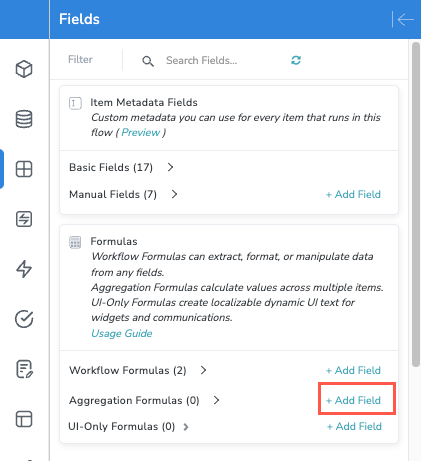
Enter a Name for the aggregation formula.
In the Select Data Source section, search for or select the data source that contains the records you want to aggregate. The Data Settings section displays.
In the Data Settings section, complete the aggregation sentence:
For each item, aggregate [data source] items from - Select the entity that contains the records you want to aggregate, such as Issues or Invoices.
Where the item [field] matches the field - Select the item field, then select the data source field it matches. Only records where the data source field value matches the item field value are included.
For example, select the item's Supplier ID field, then select the Supplier ID field on the invoice records.
And display the - Select an aggregation type. If the aggregation type requires a field, select the field in of the field. See the table below for the available aggregation types.
Only include [records] where - If relevant, select + Add filter to add conditions that limit which records are included in the aggregation. For example, include only invoices with a status of "Open". For aggregation types that combine sub-aggregations, such as Percentage or Formula, add filters to each sub-aggregation instead.
If you selected the First or Reduce aggregation type, select how the records are sorted. If you don't select an Order by field, the records aren't sorted in a specific order.
Order by - Select the field to sort the records by.
Order - Select Ascending or Descending.
Order field type - Select Textual, Number, or Date.
Aggregation type
Result
Count
The number of matching records.
Sum, Avg, Max, Min
The total, average, highest, or lowest value of the selected field across the matching records.
First
The value of the selected field from the first matching record, based on the sort order you select.
Reduce
The values of the selected field from all matching records, combined into a single value. Select Concat as the reduce function, then enter a separator. The separator defaults to a comma.
Grouped by
A count, sum, or average for each group of records, grouped by the selected field. Display Settings aren't available for this aggregation type.
Percentage, Division, Multiplication, Diff
A calculation that combines two sub-aggregations, each with its own aggregation type and filters. For example, use Percentage to calculate the percentage of open invoices out of all invoices.
Formula
A calculation that combines sub-aggregations using an expression. The expression starts as
{A} + {B}, with a sub-aggregation for A and B. To add a sub-aggregation, enter a new name in curly braces, such as{C}. For available functions, see Formulas.Select Next. The Display Settings section displays. Configure how the aggregation value displays. These options are the same as the display settings for Workflow Formulas.
Select Next. The Display Conditions & Follow-Ups section displays. If relevant, select Add Rule to create a rule that determines the display condition and status of the field based on its value.
Select Next. The Additional Information section displays. Configure the Field description, Field group, and Field Update Scope settings. These settings are the same as the additional information settings for Workflow Formulas.
When finished, select Save in the upper right. The aggregation formula is added to the Aggregation Formulas section in the Fields panel. Expand the section to see it.
You can also create an aggregation formula as a global field. A global aggregation formula aggregates records across the entire data source rather than for each item, so it doesn't include a matching step. Global aggregation formulas are commonly used as key metrics in a module's business report. For more information, see Global Fields.
Manage Aggregation Formulas
To open an aggregation formula's settings, select Edit beside the field in the Fields panel. In Production, select View instead.
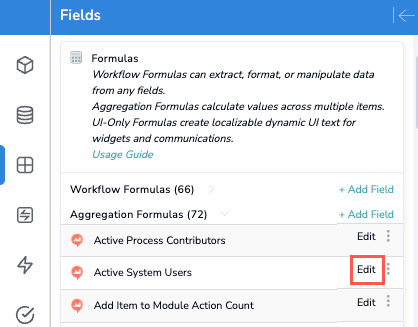
Select the ellipsis menu beside an aggregation formula to access the following options:
Filter Dependent Fields - Filters the Fields panel to show fields that use this aggregation formula.
Filter Dependent Triggers - Displays the module's triggers, filtered to show the triggers that use this aggregation formula.
Duplicate Field - Creates a copy of the aggregation formula. This option is available only in the Build environment.
A crossed-out eye icon beside an aggregation formula indicates the field isn't used by the module or its interfaces. Tonkean doesn't calculate unused fields, so the formula has no value until it's used in the module or an interface.